

Email: [email protected]Phone: 1800 324 872
ErgData Feature: Custom StrengthErg Movements
18 June 2025
Share

Concept2’s free app ErgData is your personal training partner for the StrengthErg. It tracks every single rep you do in detail, and it makes it easy for you to compare previous workouts and benchmarks, so you can clearly see how you are improving. With our custom StrengthErg movement feature, you can now create custom movements and tags, which will assist you in better organizing your workouts and analyzing your results. Here are a few reasons why you should check it out!
Why would I need custom movements outside of leg press, seated row, and chest press?
Here are a few reasons why you might want to create custom StrengthErg movements:
You are performing a workout that incorporates several movements over a period of time or segment of work. For example, a favorite of ours is setting ErgData for 6000 Kg-m and doing 3000 Kg-m of leg press, 2000 Kg-m of chest press and 1000 Kg-m of seated row. Having a custom name for this workout is beneficial for you to track your progress and evaluate your metrics.
You are performing a specific technique variation of a movement for training purposes, and you want to track this data. One example would be you are performing the chest press with a narrow grip for sport specific training reasons. By creating a custom movement for the narrow grip chest press, you are better able to compare your results over time with this style of grip.
You are setting the damper at different levels to target distinct parts of the force-velocity curve, and you want to track this data. For example, you might be targeting a faster, more explosive movement, so you set the damper lower for a leg press. By creating a custom movement for this you can better track your drive time and other metrics important for explosiveness. It should be mentioned, custom movements are not able to be ranked in the Concept2 online logbook.
How to Create a Custom StrengthErg Movement
1. Be sure you have an ErgData account, and it is the most up to date version.
2. Login to your account and go to ‘Settings’ in the bottom right-hand corner.
3. Select ‘StrengthErg Movements’.
4. From here, select the ‘+ Add Movement’ button.
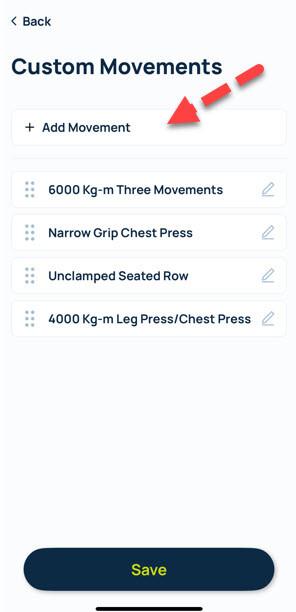
5. Type the name of your custom movement and select ‘Add’.
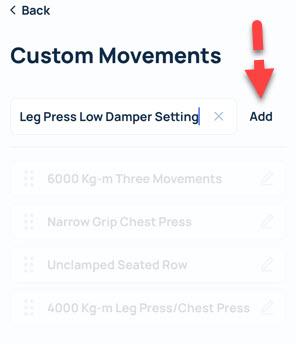
6. Now that your custom movement is added, select the ‘Save’ button on the bottom of the screen.
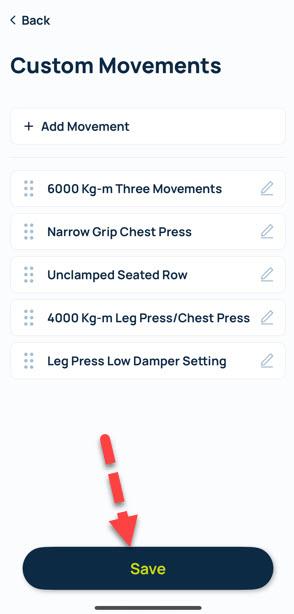
You can now assign new workouts a custom movement when you select ‘Custom’ on the Start in 3 Reps screen of a new effort. You can also edit past workouts with the custom StrengthErg movement that you created.
To edit past workouts to the correct movement (this applies for all movements, not just custom movements):
1. Go to your Logbook section in your ErgData app.
2. Find and select the workout you want to update to a new custom movement or correct the movement to a general movement.
3. Select the three dots on the right-hand side below the share button.
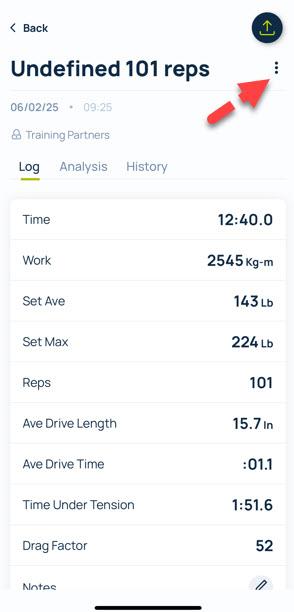
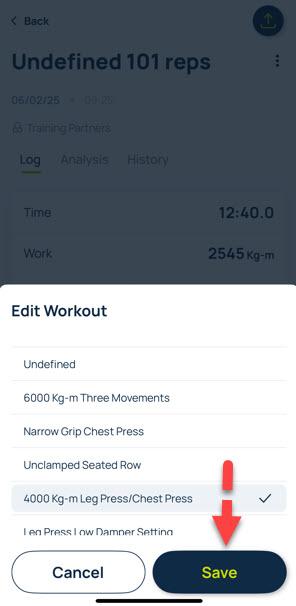
4. Select the correct movement and select ‘Save’. It will now accurately show in your logbook with the new designated movement.
Note: Custom movements are unable to be ranked in the logbook, even if you perform a rankable number of reps, time, or amount of work.
Recent Posts
Get Updates and Training Tips from Concept2
Tags: